

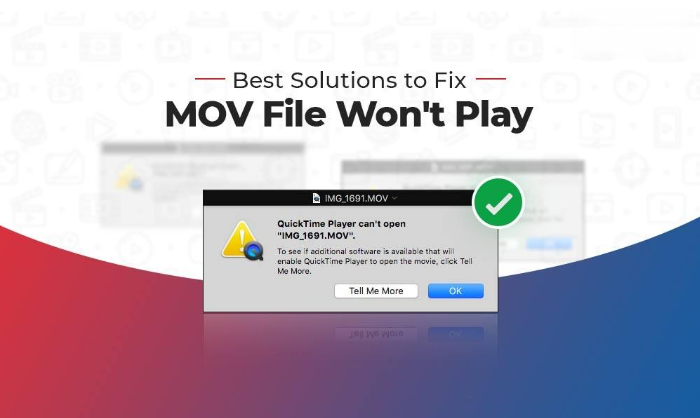
You just finished filming something you’ll never get back, a wedding, a competition, your kid’s first steps, and when you go to play it back, nothing happens. The file sits there, greyed out or frozen on the first frame, and every app you try throws a different error. Before you panic and assume the footage is gone for good, take a breath. Most of the time, a MOV file that won’t play isn’t actually destroyed. It’s just missing a small but critical piece of information that tells your player how to read it. And you can often get it back without installing a single piece of software. This guide walks you through why it happens and how to repair MOV files using nothing more than a browser.
Why MOV File Suddenly Stopped Playing
MOV is Apple’s own video container format, and it’s generally reliable, but it has one weak point: the file needs a small index at the end called the “moov atom” to tell the player where each frame, audio track, and timestamp lives. If that index never gets written properly, the file becomes unreadable even though the actual video data is sitting right there, untouched.
Here are the situations that cause this most often:
- The device lost power mid-recording. This is one of the most common causes reported by people trying to fix action-cam and DSLR footage. If your camera’s battery dies, or the device crashes, before you hit stop, the final index is never written and the file is left in a broken, “trunc-ated” state.
- A transfer got interrupted. Copying files from an SD card, hard drive, or phone and pulling the cable or closing the app too early leaves the file incomplete.
- The file uses an older or unsupported codec. Footage shot years ago on older camera models sometimes uses codecs that current versions of QuickTime or your OS no longer support. In this case the file isn’t corrupted at all; your player just doesn’t know how to decode it anymore.
- Storage errors. A failing SD card, USB drive, or hard disk sector can silently damage parts of a video file during writing or reading.
- A mismatched or renamed extension. Occasionally a file gets renamed or exported with the wrong extension, so the system tries to open it with the wrong player.
Knowing which of these applies to your file helps you pick the right fix instead of wasting time on the wrong one.
Is It Really Corrupted, or Just Unsupported?
Before trying any fix, do a quick check:
- Try a different player. If QuickTime refuses to open it, try VLC. VLC uses its own decoders and often plays files that native players reject outright, and this alone solves the “old codec” scenario without any repair being needed.
- Look at the file size. Right-click the file and check its properties. If it’s 0 KB or drastically smaller than you’d expect for the recording length, that points to an interrupted write or failed transfer.
- Check on another device. Try opening the file on a different computer or phone. If it plays somewhere but not elsewhere, it’s a software/codec issue, not real corruption.
- Look at the file extension. Make sure it genuinely is a .mov file and hasn’t been mislabeled during a transfer or download.
If VLC or another player still won’t touch it, the file likely does have structural damage, and it’s time to actually repair it.
Methods to Fix the MOV File Won’t Play Error
Try VLC’s Convert
This is worth trying before anything else because it costs nothing and takes two minutes. You can repair video using VLC; it can sometimes rebuild a rough index while converting a file, which is enough to make it playable again:
- Open VLC and go to Media > Convert/Save.
- Add your damaged MOV file.
- Click Convert/Save, choose an output profile (MP4 works well), and pick a destination.
- Click Start and let it run.
This won’t fix every case. If the moov atom is badly damaged rather than just missing, VLC often can’t reconstruct it, but it’s a genuinely free, no-download-needed (if you already have VLC) first attempt.
Use an Online Repair Service
When the video data itself is intact but the file’s internal index is broken (which is exactly what happens after a mid-recording power loss or an interrupted transfer), you need something that can actually rebuild that index using a healthy reference file. This is where a dedicated repair video online service earns its place, because it’s built specifically to reconstruct that missing structure rather than just re-encode the file and hope for the best.
Stellar Online Video Repair is one such service worth trying if VLC alone doesn’t do the job. Here’s roughly how the process goes:
- Upload the damaged file. You can upload files up to a certain size limit directly through the browser, no installation needed.
- Add a healthy sample clip if you have one. If you have any other unaffected clip shot on the same camera, uploading it as a reference sample helps the service understand the correct file structure and rebuild the index more accurately. This step is optional but improves the odds of a clean fix, especially for footage from GoPros, drones, and DSLRs where corruption after a battery cut-off is common.
- Run the repair and preview the result. The service processes the file on its end and gives you a preview before you download anything, so you’re not stuck with a surprise.
- Download the fixed video. Once you’re happy with the preview, download the repaired file.
Because everything happens server-side, you don’t need to install anything on your computer, and the process typically finishes in a matter of minutes rather than requiring manual hex-editing or command-line tools.
Use FFmpeg and Untrunc
If you’re comfortable with slightly more hands-on tools, there are two well-known free options worth knowing about, even though they’re not strictly “online”:
- FFmpeg, run from the command line, can sometimes fix a broken container just by re-muxing the streams into a fresh file, using a command as simple as copying the streams into a new container without re-encoding them.
- Untrunc, an open-source tool built specifically for MOV/MP4 files that lost their index due to a crash or dead battery mid-recording, can often rebuild the file, but it needs a working sample video from the same camera and model to use as a reference, and it has no graphical interface, so it’s better suited to people who don’t mind a bit of command-line work.
These aren’t strictly “no software” solutions, but they’re free, and worth knowing about if the online route doesn’t fully solve your case, particularly for very large files that exceed a repair service’s upload limit.
Preventing This from Happening Again
A little precaution saves a lot of stress later:
- Never eject or unplug a storage device while a transfer is still in progress.
- Keep your camera or phone charged, or stop recording manually before the battery runs critically low.
- Back up important footage in two places as soon as possible after recording.
- If you’re using an older camera, periodically check that its output format is still supported by your current OS and player.
Final Thoughts
A MOV file that won’t play is alarming, but it’s rarely a lost cause. Start with the simplest checks (a different player, a look at the file size) before assuming the worst. Try VLC’s conversion trick for a quick, free attempt, and if the file’s internal structure is genuinely broken, an online repair video service that can rebuild the index using a sample clip is usually your best shot at getting the footage back without touching a single line of code or installing anything new. Most of the time, the video you thought you lost is still sitting there intact. It just needs its map redrawn.









Leave a comment